
Guide
Before you play
Install SyphonGo
SyphonGo is an Android app for Android 11 or newer. You install it by hand once; after that it keeps itself up to date.
-
Get the APK
The app comes as an APK file. It will be on the Downloads page as soon as the beta is released.
-
Allow the install
Open the downloaded APK. The first time, Android asks you to allow installing apps from your browser or files app: tap Settings, turn on Allow from this source and go back.
Android or Play Protect may warn you about an app from outside the Play Store. Only install SyphonGo from this website.
-
Install and open
Tap Install. The app appears as SyphonGo on your home screen and in your app list.

The first time you open it
First start
The app itself is small: it downloads the game the first time you open it. Connect to Wi-Fi first: on mobile data the app warns you before the full client’s 7.7 GB.
-
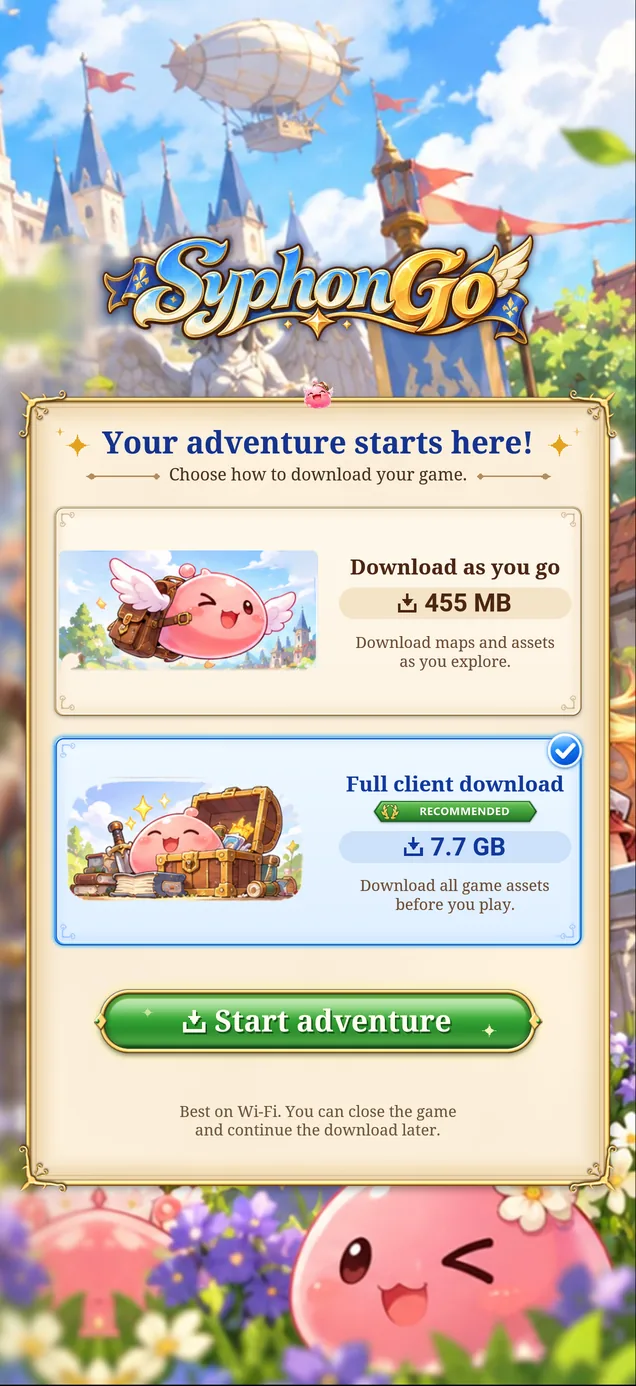
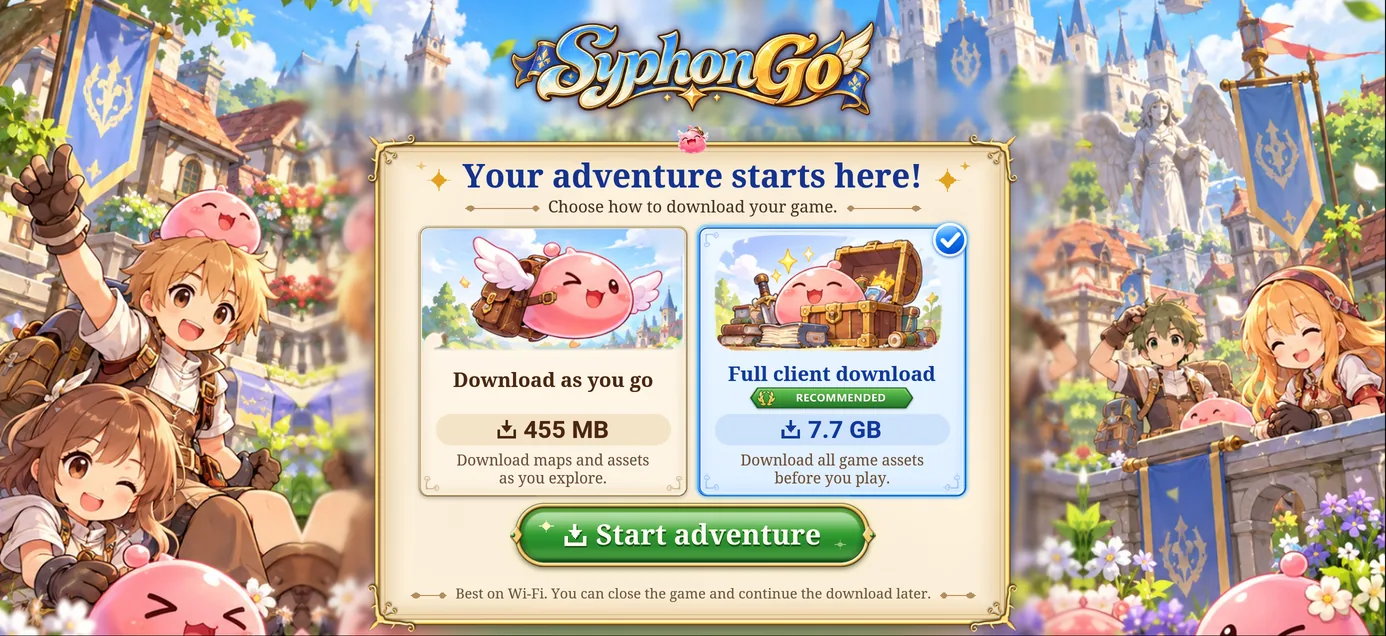
Choose a download
Download as you go: about 455 MB, then maps and assets as you explore.
Full client download: about 7.7 GB, everything before you play. Recommended, because maps load faster.
Tap one, then Start adventure.
-
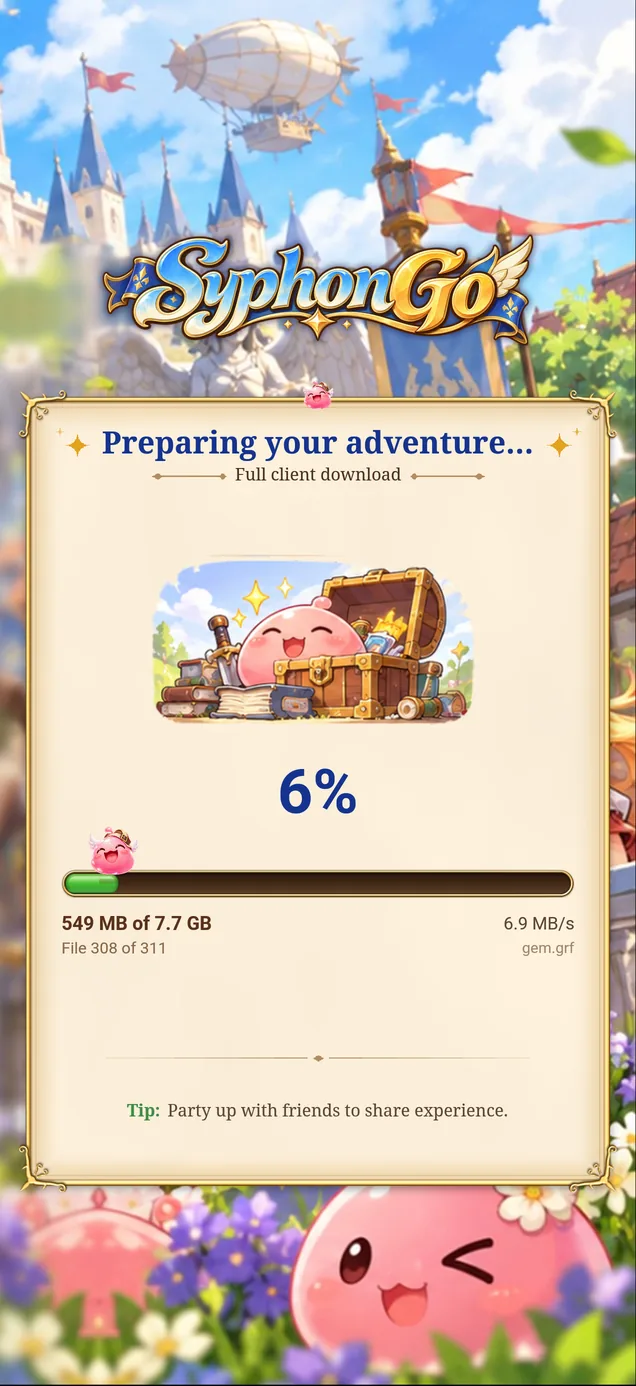
Let it download
“Preparing your adventure…” shows how far along it is, the speed and the time left.
You can close the app and continue later: it picks up where it stopped.
-
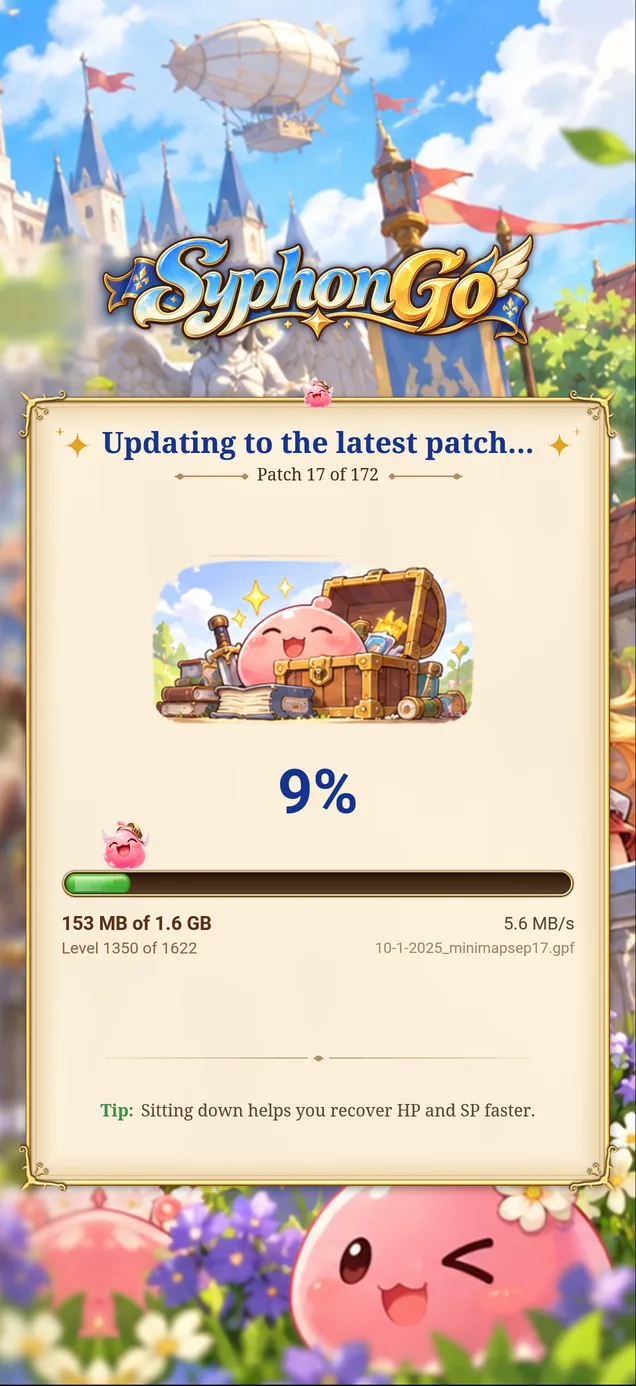
The latest patches
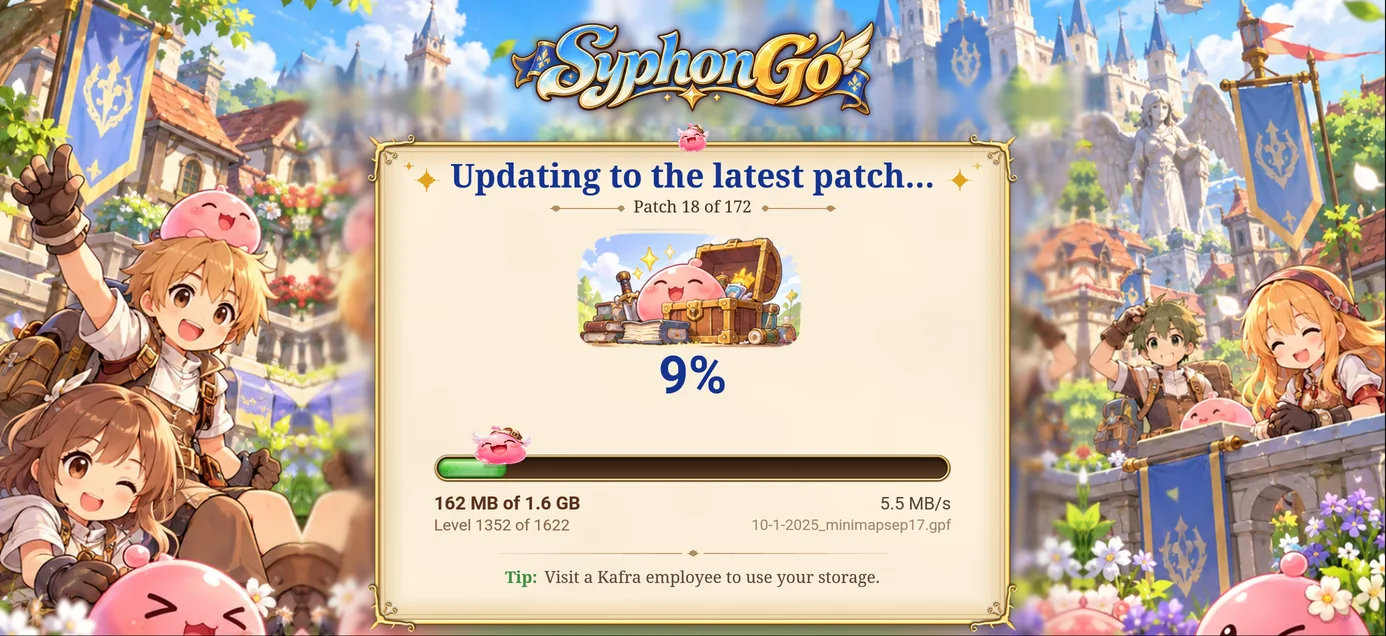
Next comes “Updating to the latest patch…”: the app adds the game’s patches by itself, the same ones the PC client gets.
-
Into the game
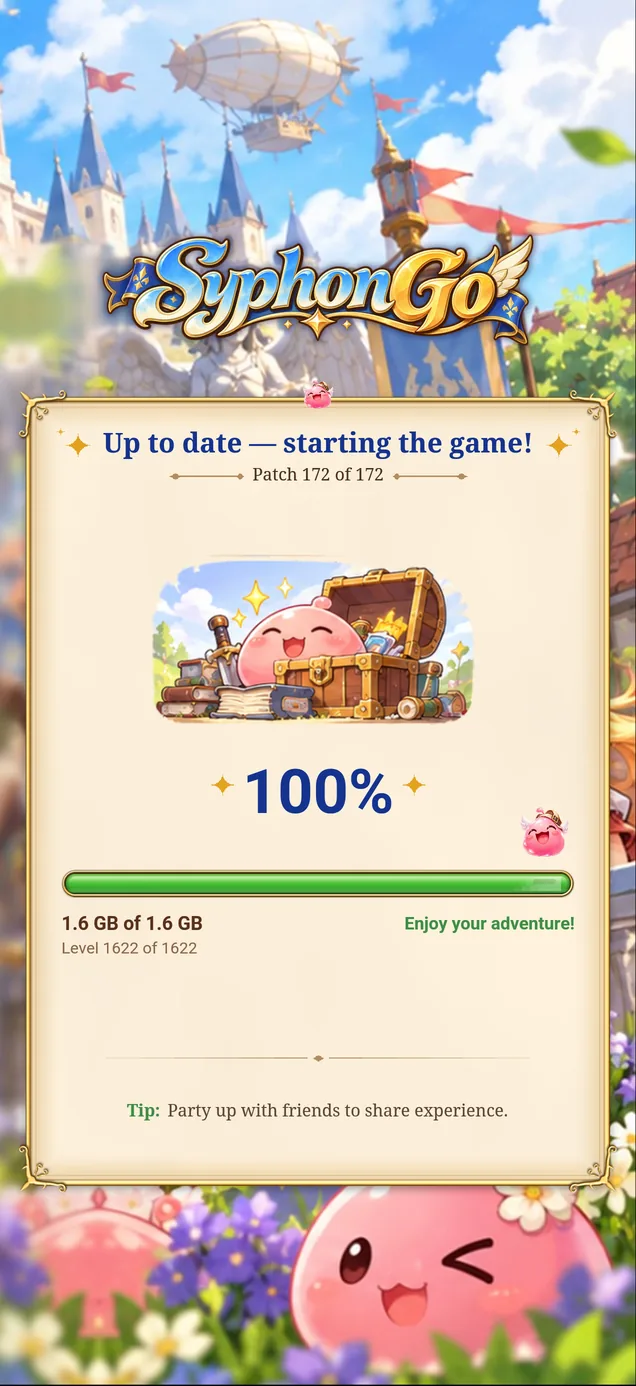
“Up to date — starting the game!” The app restarts into the game, which plays in landscape.
Hold your phone either way
With auto-rotate on, the download screens turn with your phone, upright or sideways. Only the game itself is always landscape.
Sizes as the app shows them today; a download you continue later shows only what is left.
In the game
Choose your server
SyphonGo plays on GemstoneRO. The first thing the game asks is which connection to use.
-
Pick a connection
The Select Service list offers connections such as [Proxy] Spain, United Kingdom, Poland, France, Miami, New York, Chicago, Seattle and Canada. Scroll for more, and pick the one closest to you.
-
Confirm and log in
Tap Confirm, then log in with your GemstoneRO account. Only one entry in the list? See Only one server in the list.
![The game’s Select Service list: [Proxy] Spain, United Kingdom, Poland, France, Miami, New York, Chicago, Seattle and Canada, with Cancel and Confirm buttons.](/assets/img/guide/select-service-1200.jpg)
Every start after that
Staying up to date
Each time you open SyphonGo, it checks for a new version of the app and for new game patches.
A new version of the app
-
Update available
A screen shows what’s new, with Update and Later. A required update offers Exit instead of Later: you need it to keep playing.
-
Confirm the install
The first time, Android asks you to let SyphonGo install apps: tap Open settings, turn on Allow from this source and come back. Then confirm the update in Android’s window.
-
Open it again
The game closes while the update installs. Open SyphonGo again afterwards. It only installs updates signed by its makers.
New game patches
New patches install by themselves when the app starts: you see “Updating to the latest patch…” while they download, then the game opens.

If something goes wrong
Troubleshooting
Most hiccups sort themselves out: the app retries, resumes its downloads and catches up on patches by itself. For the rest, here is what to do.
-
Not enough storage
The app tells you how much more space it needs. Free up that much, then open SyphonGo again. Without room for the full client, the choice screen says so and selects Download as you go.
-
Connection lost
The screen says “Connection lost — retrying…” and the app tries again by itself. The download picks up where it stopped.
-
Patch server unreachable
The game starts with the patches you already have. A later start, a few minutes on, adds the rest.
-
Only one server in the list
If Select Service shows just “[Global] Main Server”, the first patches have not arrived yet. Close SyphonGo (swipe it away from your recent apps) and open it again in a few minutes.
-
Download as you go needs a connection
It loads maps and assets while you play, so a weak connection can mean short pauses or missing graphics. The full client keeps everything on your phone.
-
Download screens after an update
The first start after an app update checks your game files and adds any new patches, so the download screens can show up again. That is normal.
-
The game is sideways
The game always plays in landscape, so turn your phone. On a tablet, hold it sideways before the download finishes, so the game opens full screen.
-
Android won’t install it
SyphonGo needs Android 11 or newer on a 64-bit phone. Older or 32-bit phones cannot install it; the Downloads page lists what your phone needs.